Special
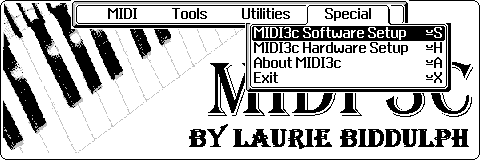
This chapter tells you:-
MIDI3c Setup
For MIDI3c to operate to your requirements a number of settings need
to be defined. It is recommended that you should enter the MIDI3c Setup Menu
to set your default settings for the program.
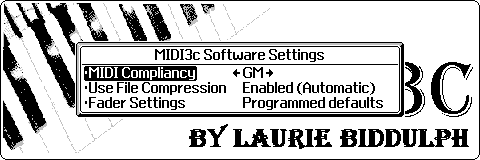
The first time MIDI3c is started, or if the configuration file (MIDI3C.CFG) is deleted or damaged, MIDI3c will assume default settings as indicated below. Not
setting these will not prevent MIDI3c from operating, however, optimum performance from MIDI3c will only be achieved if these settings have been set according
to the MIDI device to be connected. See the table below for the settings assumed by MIDI3c for the various compliancy settings. MIDI3c will initially default to
GM Mode.
| None
| GM
| GS
| XG
|
Panic Mode
| Full
| All Notes Off
All Sounds Off
| All Notes Off
All Sounds Off
| All Notes Off
All Sounds Off
|
Bank Select
| None
| None
| MSB & LSB*
| MSB & LSB
|
Running Status
| Disabled
| Enabled
| Enabled
| Enabled
|
Note Off
| Note Off = 64
| Note On = 0
| Note On = 0
| Note On =0
|
Drum Channel
| 16
| 10
| 10
| 10
|
* The MIDI Specification indicates that only MSB should be supported. However a number of MIDI devices actually use LSB as well so this derivation from the standard has been
employed.
The settings available to you are:-
- MIDI Compliancy - It is important that MIDI3c is aware of the capabilities of the connected MIDI device. The MIDI standards currently define three
levels of compliancy :- GM (General Midi), GS (Roland's General Synthesis) and XG (Yamaha's Extended Midi). Some older equipment may not meet any
of these standards. Defining the MIDI devices compliancy allows MIDI3c to apply appropriate filtering when converting MIDI files, and to provide
appropriate control options.
- Drum Channel (XG/None modes) - The MIDI specification states
that for GM and GS compliant MIDI devices that Channel 10 MUST be used as
the Drum or Rhythm channel. XG devices will normally use Channel 10 but this
may be changed if desired. Similarly, it is fairly common for None compliant
devices to use Channel 16. This option lets you specify the Drum Channel that
is to be used by the Metronome module
when connected to a None or XG compliant MIDI device.
- Use File Compression - This
setting allows you to determine whether MIDI3c uses file compression when
converting MIDI files in to M3C format. The user should be aware that enabling
file compression will result in a delay when selecting a file to play. If
File Compression is enabled in 'Fixed mode' then this delay will always be
15 seconds. If enabled in 'Automatic mode' then the delay will be relative
to the size/complexity of the file (see Zipper
for further details).
- Fader Settings - Setting this value to Enabled will result in the
current Fader levels being saved to file when you exit the Fader
module. This allows you to recall the current settings the next time you
enter the Fader module. If you wish
to keep your original settings then this setting should be set to Disabled.
- Audible Indicator - MIDI3c uses an audible indicator to indicate when the program is ready for user input. These normally occur at the end of a screen
refresh but also occur when specific user responses are needed. You may disable these audible warnings if you wish. Please note that this setting is ignored
for `critical' or `warning' messages where an action by the user is essential.
- Default Data Disk - This option lets you define the default location for MIDI files. When adding or converting files, this is the location the program will
search first.
- MIDI Interface Output Port
- This option lets you specify whether the Psion is connected to the MIDI
Sound device by a serial RS232 connection or via a MIDI-IN connection. If
the connection is by RS232 you may specify either 38,400 Baud or 57,600 Baud.
If you are using the MIDI-OUT connection then select MIDI3c OUT as the option

About MIDI3c
This module informs you of the current version number and software release date of the programme. It also gives details of the contributors to the programme and
your registration details.
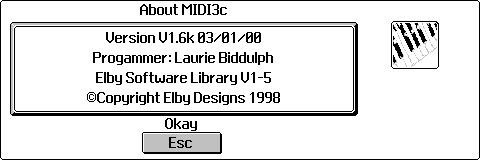
You should keep a copy of your Registration Number which is required in all communications regarding MIDI3c.
Many thanks go to Alan Thomas of The Magic MIDI Music Company who has tirelessly spent many hours testing the MIDI3c application and has been a fountain
of knowledge when it came to many aspects of handling MIDI files.


